Getting started with Scheduler
Create round robin, elimination, and hybrid schedules you can share and score.
Terminology note: Below we use terms specific to basketball like court, game, and point. Make a soccer schedule and you'll see field, match, and goal. Every sport on Playpass has its own terms, so please tell us if we're missing yours.
Create a schedule
First, create a schedule by selecting a sport, the number of teams (or players), and the type of schedule.
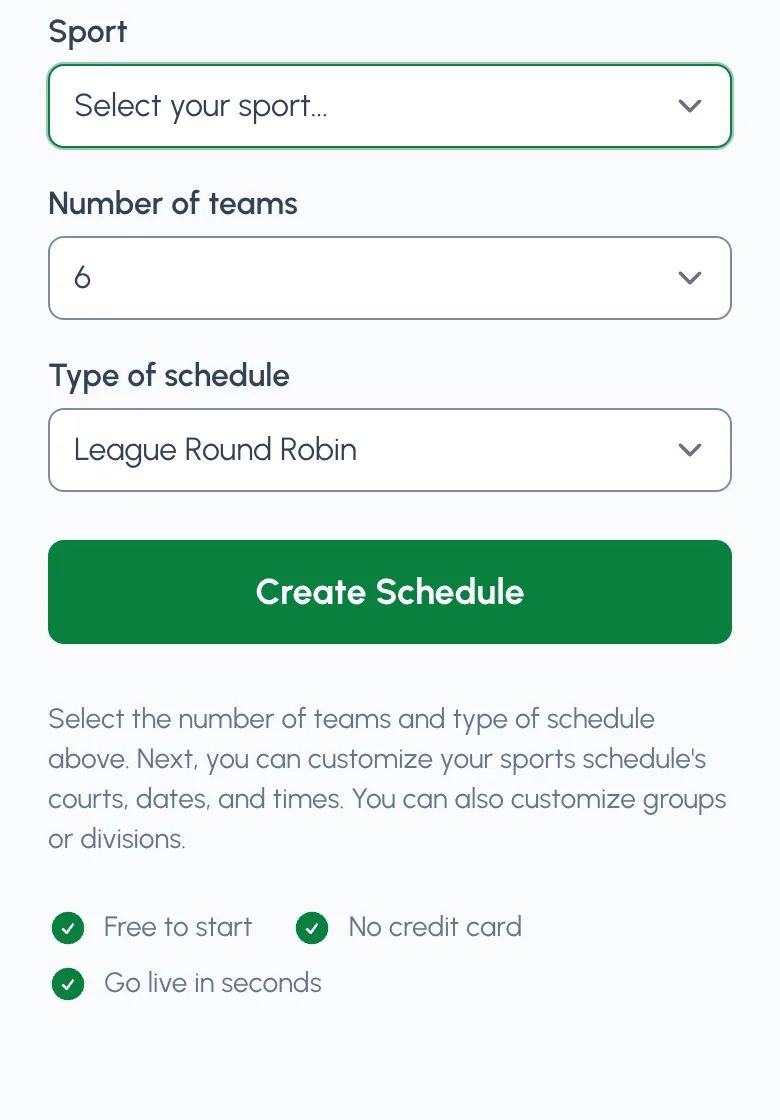
Signed-in users and organizer managers see a guided setup before games are created. The guide walks through Participants and venue, Dates and times, Game format, and Review setup. If you do not need dates and times yet, choose Create schedule now on any step before Review to generate the games or matches with the settings you have entered; you can add dates and times later from Edit. Otherwise, continue to the review step and click Create schedule. After games are created, use Edit to change dates, times, teams, and other setup details.
What type of schedule can I make?
- Round Robin: teams play a set number of games against other teams in their group
- Rotating Partners: players are paired with different partners each match in a 2 vs. 2 format -- ideal for doubles leagues that track individual standings
- Practice Schedule: each time slot has one team and no opponent, score, or standings
- Single Elimination: teams keep playing until they lose 1 game
- Double Elimination: teams keep playing until they lose 2 games
- Triple Elimination: teams keep playing until they lose 3 games
- Swiss-System: teams compete in a set number of rounds, with pairings based on performance rather than elimination
Tip: You can add an Elimination (single or double) to any Round Robin. Just tap Add Playoffs from the bottom of any League Round Robin schedule.
Edit your schedule
After setup creates games, you'll be viewing your schedule. Tap Edit to change your schedule's setup, and tap View in the pills to return to the schedule view. This Edit section is only visible to you and any managers you add. The guided setup guide does not reopen after games are created. Let's go through it step by step:
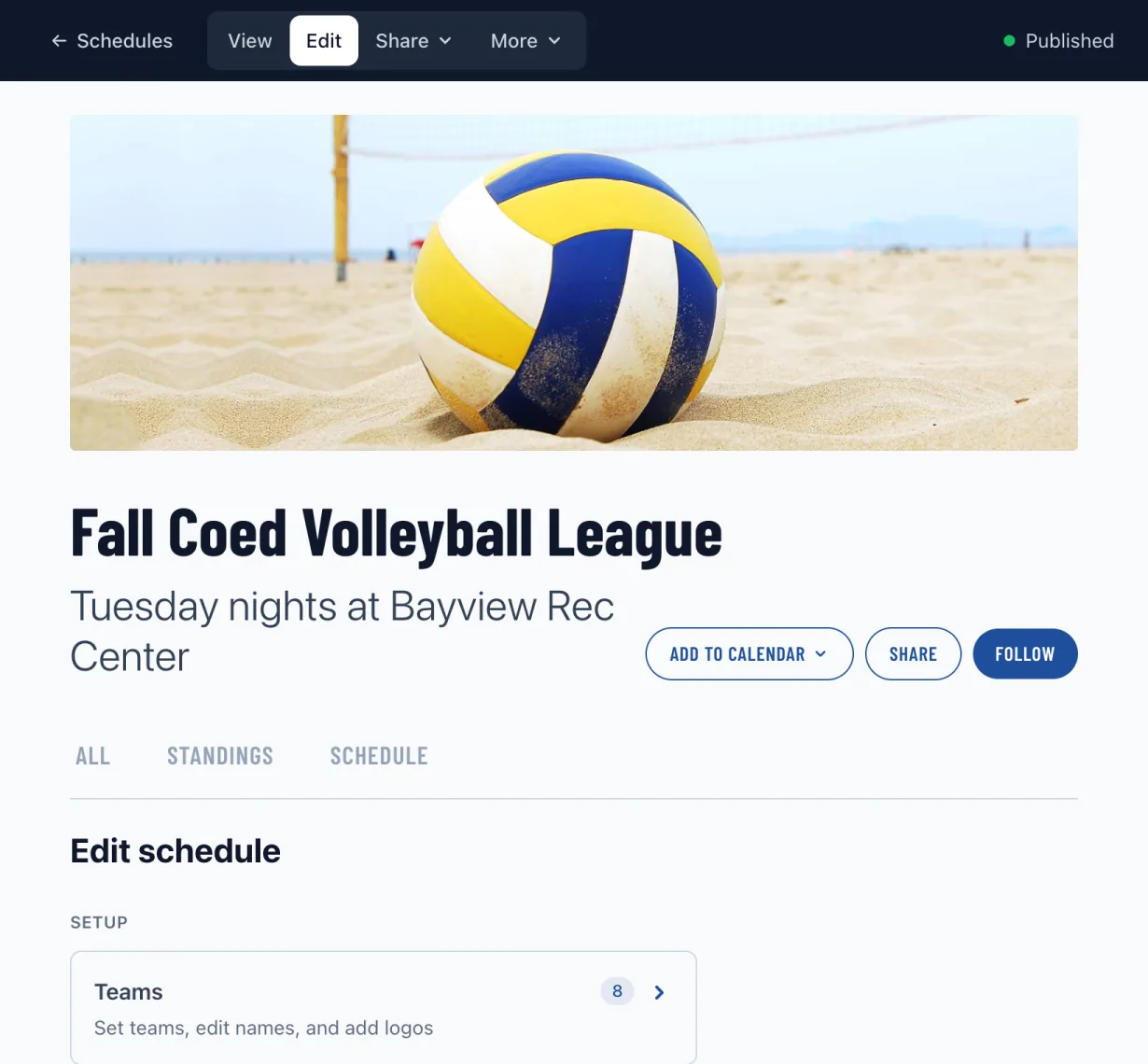
Teams (or Players)
You can rename each team and add a logo. Before games are created, use Participants and venue in the setup guide to set the number of teams or players. After games are created, changing the number of teams is a larger setup change because the matchups depend on it. If scores are already entered, remove the scores first or make a new schedule. Tip: tap the "Quick edit all names" button below the list of teams to rename them all at once.
On team-based Round Robin schedules, you can also open an individual team from Edit > Teams to manage captains, roster members, and available free agents for that schedule team.
Courts (or Fields, Pitches, etc)
You can rename each court, plus add or remove courts. If your schedule has multiple courts, the court/field name will show on every game. If you only have one court/field, we'll still show it if you rename it from the default (for example, "Field 1" → "Lower Field").
Changing the number of courts/fields is a generated schedule change, so Playpass recreates the generated games to rebalance dates, times, and locations.
If you only need an extra one-off location for an existing schedule, open Add manual court or Add manual field below the list in Edit > Courts instead of changing the court/field count. A manual location becomes available when you edit individual games, but it does not recreate the generated schedule and Playpass will not automatically place future generated games there.
Home courts or fields
On generated Round Robin schedules with more than one court, you can optionally assign a home court per team or player from Edit > Teams. First name your courts from Edit > Courts, then open Edit > Teams and use the Team home courts panel.
Without a home court, Playpass rotates that team across all courts as evenly as possible. With a home court, Playpass schedules that team's home-side games there when possible, while still keeping the schedule valid if the court is unavailable.
Set home courts once, before manually customizing individual games. Each time you save home court assignments, Playpass recreates the full generated schedule, so manual changes to game dates, times, courts, or matchups can be overwritten.
Groups
For Round Robin schedules only, use this to divide your teams/players into groups/divisions. Each team only plays teams in their group. By default, teams are evenly distributed across groups, but you can customize team assignments (including uneven group sizes) from Edit > Groups. Tip: if you have more than 1 group and those teams are not going to play each other, then make a separate schedule for each group.
Basic info
Rename your schedule, use the subtitle to add extra details. Plus upload your own photo. You can also change the sport.
Dates, times, and rounds
From this section of new-schedule setup or Edit, you can set the overall dates and times. Just so you know, after the schedule is created, you can also manually change any game or match.
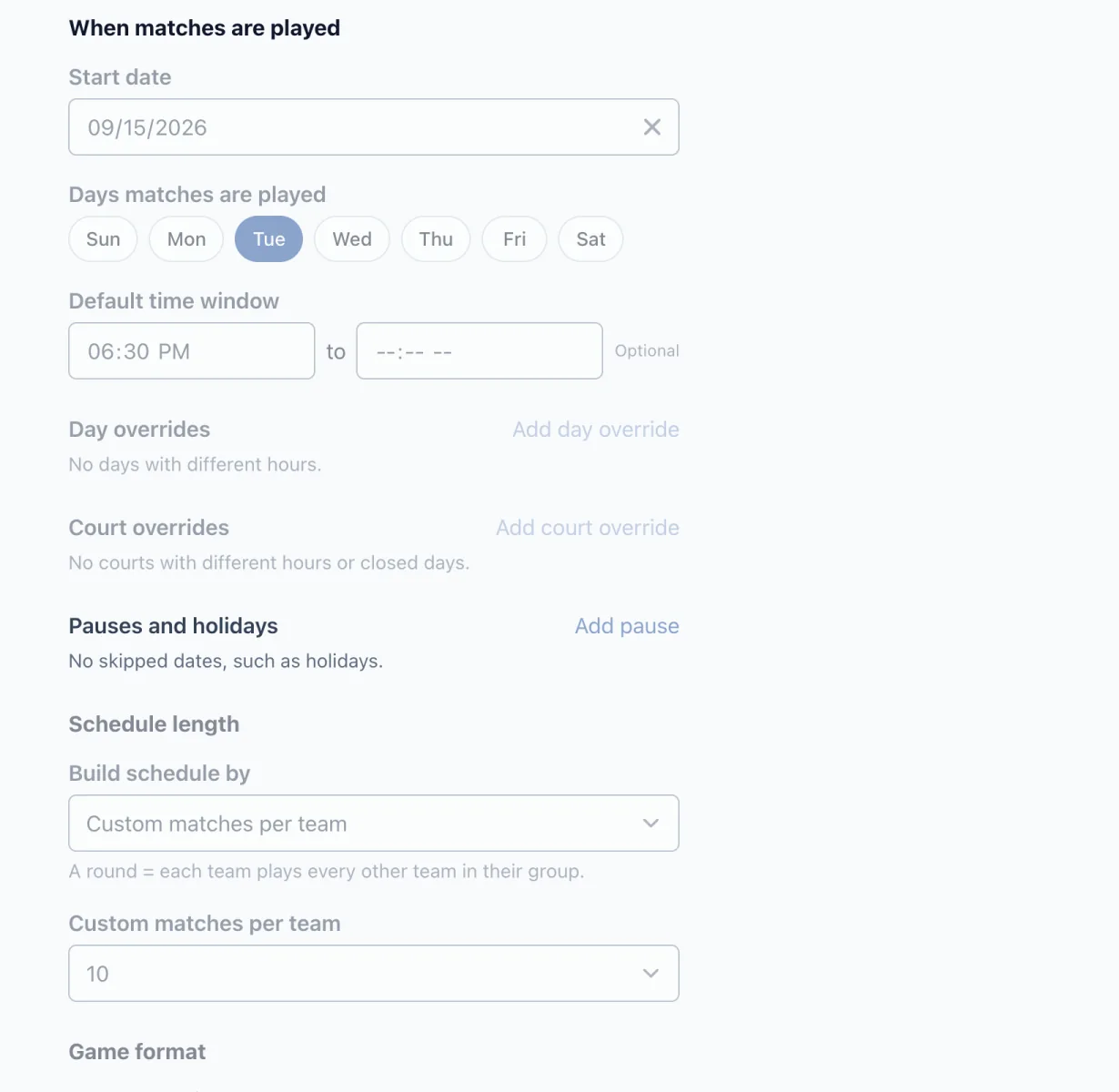
- Start date: date that games begin
- When games are played: choose the days of the week you play and the default time window for those days.
- Day overrides: optional. Click Add day override when one selected weekday has different hours than the default time window.
- Court overrides: optional on schedules with multiple courts. Click Add court override when one court has different hours or is closed all day on a selected weekday.
-
Pauses and holidays: optional. Click Add pause for holidays, breaks, or closures when play should pause. Leave the end date blank for a single-day pause. Games continue on the next available date. Add a Label, such as
All-Star break, to show the pause as a row in the game list. - Schedule length: for Round Robin and Rotating Partners schedules, use Build schedule by to choose full rounds, custom games per team, or Fill games through end date. When you choose the end-date option, End date appears and is required.
- Game duration: how long games last in minutes. This sets your schedule's initial time slots so be sure to include breaks. For example, if games are 60 minutes with a 15 minute break, set this to 75 minutes.
- Daily games per court: number of games per court per day. If you have more than 1 court, double-check this. 2 games per court per day with 3 courts, for example, would be 6 games total each day.
- Rest between games: Use this to prioritize back-to-back games (minimum rest) for teams when possible. This is often used for 1-day or 2-day events.
Use Day overrides when your facility is not available at the same time every selected day. For example, set the default window to Monday and Wednesday from 6:00 PM to 9:00 PM, then add a Saturday override from 9:00 AM to 1:00 PM.
On schedules with multiple courts, use Court overrides when one court opens later than the others or is closed on a selected day. Choose Available to set a different open window, or Closed all day to remove that court from that day's schedule.
Use Pauses and holidays before creating or refreshing the schedule when play should stop for a holiday, closure, or school break. Add one pause for each holiday or break, using an end date only when the pause spans multiple days. Playpass leaves out those dates and continues on the next selected day that fits the schedule window.
A labelled pause appears in date order on the public and manager game lists, between the games before and after it. You can add or change a label at any time, even after scores are entered, and it never moves or rebuilds games. Changing a pause's dates still counts as a setup change.
Use Schedule length when the season needs to stop on a specific date. In Build schedule by, choose Fill games through end date, then enter End date. Playpass fills available game days through that date and may repeat the matchup pattern with varied order and sides when the season is longer than the normal schedule. End date is not a separate top-level date field.
If the selected end date leaves no valid game dates or would create too many games, Playpass will ask you to choose a later end date, fewer games per day, or different game days.
For Round Robin schedules only, you can also control how many games each team plays.
-
Rounds of play:
- For Round Robin: number of times each team plays every other team in its group.
- 1 round = each team plays every other team in their group once. For example, if a group has 6 teams, 1 round would be 5 games per team. 2 rounds = play every other team 2x each, 3 rounds = 3x, etc. More rounds = more games per team and a longer schedule. If you need a precise number of games per team, select Custom games per team.
- For Rotating Partners: number of times each individual rotates through new 2 vs. 2 partner combinations.
- For Practice Schedule: number of practice slots each team receives.
- For Round Robin: number of times each team plays every other team in its group.
See multiple schedules in one calendar
Open Schedules > Calendar in your dashboard to compare games across your organization’s non-archived schedules. Check or uncheck schedules to change what the calendar shows. Use the arrows, Today, or the date picker to choose a week. Times use your organization’s time zone, and played games show their scores. Unscheduled shows games that have no date. When a week has no games, Next games takes you to the next week that does. Open a game’s row to go to its existing schedule.
The calendar starts visible only to staff. An owner or manager can select Publish calendar to add a Calendar tab to the public homepage. Players get the same schedule filters, but only published schedules visible on your site appear. Hidden or draft schedules stay private and are marked Hidden or Draft in your dashboard calendar. Attached playoffs also require a visible, published parent schedule. Your homepage must be published too. Unpublish removes public access and the homepage tab. When you're signed in, the public calendar shows a ← Schedules link back to this dashboard page.
You can compare up to 20 schedules at once. A view shows up to 500 games and asks you to select fewer schedules if it reaches that limit. Reload to see schedule changes. This calendar does not change any games or sync changes back from Google Calendar.
Manually change your schedule
You can change any individual game, match, or practice slot on the schedule. From the schedule view, each game has one action and a three-dots menu. Tap the three dots and choose Edit details; on a practice slot, or a game still waiting for its opponent, Edit details is the game's own action. The editor opens inside the game with Score, Details, Duties, and Note tabs, so you can switch between them without closing it. Note adds a line of text under the game that everyone viewing the schedule sees.
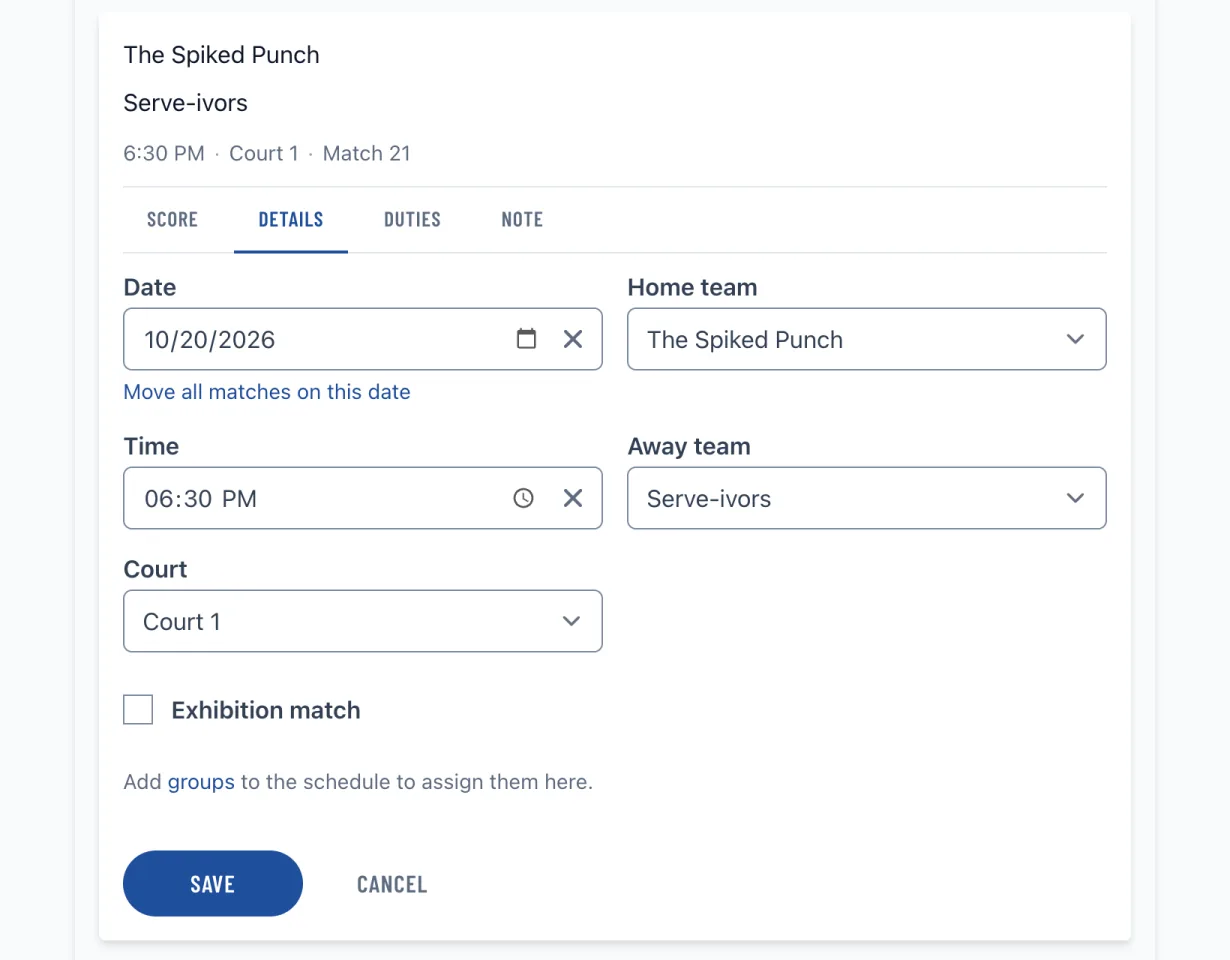
Easily change an individual game's Date, Time, Home Team, Away Team, or Court (if more than 1), then tap Save. Once a game has a score, its teams are set: the team fields stay locked until you clear the score, and its date, time, court, and note can still change.
If the replacement location is not already in the list, first add it from Edit > Courts > Add manual court/field, then edit the affected game and choose that location.
For a Round Robin schedule, use Add practice at the bottom of the schedule to add a one-team practice slot. Practice slots appear on the public schedule and calendar feed, but they do not have an opponent, score button, standings result, or playoff seeding effect.
On Round Robin and Swiss schedules you can also:
- Set Away Team to TBD when the opponent is not known yet. The game shows
TBDeverywhere, has no score button, and does not count in standings until you choose the away team. - Check Exhibition game for a game that should appear on the schedule without counting. Exhibition games show an Exhibition badge and are left out of standings and league leaders, even when scored. Clearing the box counts the game again. Set it before entering the score when you can; you can still change it on a scored game.
- To remove a game from the schedule, tap the three dots on it and choose Delete game (it uses your sport's term, such as Delete match). The editor names the game and what deleting it does; tap Delete game there to confirm, or Cancel to keep it. A game with a final score also leaves the standings.
Assign game duties
Use duties to show who is refereeing, keeping score, or handling another job at a game. You can assign a saved person or a team from the schedule, and name your own duties, such as Umpire, Scorekeeper, or Cleanup.
- Open your schedule as an organizer owner, manager, or staff member with scheduling access.
- Open a game's three-dots menu and choose Duties. You can also select Duties in an open game editor.
- Choose a Duty, or select New duty… and enter a name.
- Under Who, choose a saved person or team. To add someone, select New person… and enter their name.
- Use Add duty for another assignment, then tap Save.
Saved assignments appear on the game, including on the published schedule. To remove an assignment, open Duties, tap its remove button, and save. Each game supports up to 12 assignments, and each person or team can have one assignment per game.
Duties record assignments; they do not invite people, send notifications, or give anyone permission to edit the schedule or enter scores. To grant access, invite a staff member.
Manage duty types and people
Open Schedules > Duties in the dashboard, or follow Manage duties from a game's Duties section. Saved duty types and people are shared across your organization's schedules. Teams stay in the schedule's team list.
Select Edit beside a name to open its form. Change the name and tap Save, or choose Cancel to leave it unchanged. Renaming updates the name on existing assignments too.
Choose Retire in the edit form when you no longer want a duty type or person offered for new assignments. Existing game assignments stay unchanged. To use a retired name again, select New duty… or New person… in a game's Duties section, enter the same name, and save an assignment.
Assignment conflicts
Playpass checks assignments against overlapping games in the same schedule, including its attached playoffs. A team cannot work a game while playing in it, and a person or team cannot work overlapping games. If an assignment conflicts, the form names the conflict so you can choose someone else or change the game time. These checks do not cover separate schedules.
Move all games on a date
You can easily move games around holidays by moving all games on a date backward or forwards.
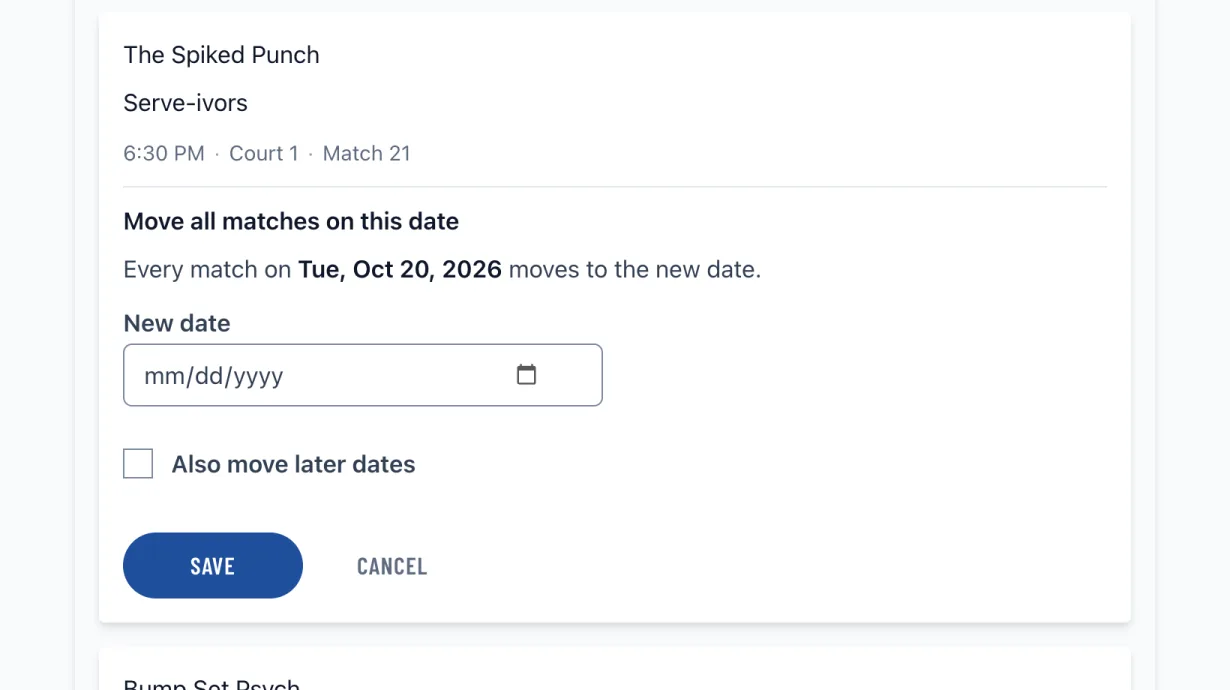
- On any game on the date you want to move, tap the three dots and choose Move all games on this date (it uses your sport's word, such as Move all matches on this date). The same link sits under the date in Details.
- Choose the New date
- Check Also move later dates if you want to also adjust ALL games on following dates. This will adjust every game on the date you selected AND afterward by the same number of days forwards or backward.
Add games or playoffs
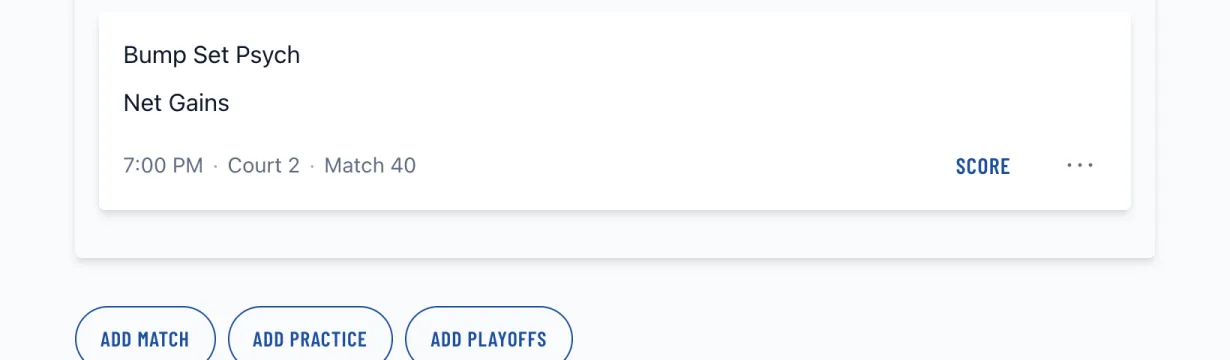
On Round Robin schedules you can add individual games or elimination playoffs using the Add buttons below the last game. The game button uses your sport's term, such as Add match. Add practice creates a practice slot, and Add playoffs creates the playoffs.
To extend a Round Robin schedule after it is created, even after scores are entered, open Edit > Dates, times, and rounds and tap Add more games. Choose how many Rounds, how many Games per team, or Games through an end date, then save. New games start after the last scheduled game and follow the schedule's days, times, fields, groups, and pauses. Existing games, scores, and player stats stay as they are. Each addition can add up to 500 games. Appending is not available for Swiss or Rotating Partners schedules. If attached playoffs already have games, adding is blocked because the new games could overlap them; review the playoff schedule before removing any games or scores.
On Playoff schedules, scroll below the bracket to add extra placement games:
- Tap Add 3rd-place game to create a standard bronze / 3rd-place matchup using the semifinal losers when they can be identified.
- Tap Add custom game to create another placement or consolation game and choose who belongs in it, such as winners or losers from earlier playoff games.
- These custom playoff games stay in the normal game list and also appear in Bracket view under Placement Games.
Auto-seed playoffs
After group play or the regular season, scroll below your schedule and tap Auto-seed playoffs. We'll fill in playoff seeds using the current standings, and you can still edit any matchup if you need to apply custom tiebreakers.
Filter and view options
Above the first game/match, you'll see schedule view options:
- All | Unplayed: tap Unplayed to see only the games still to score. The list opens on the first one, with its date expanded
- Team, Group, and Court filters: click any team name (and, when available, any group name or court/field name) in the schedule to filter; remove a filter by clicking the X on the filter pill above the schedule
- Bracket view (newer playoffs): for eligible playoff schedules created after Dec 15, 2025, click Bracket to view a visual playoff bracket
Share your schedule
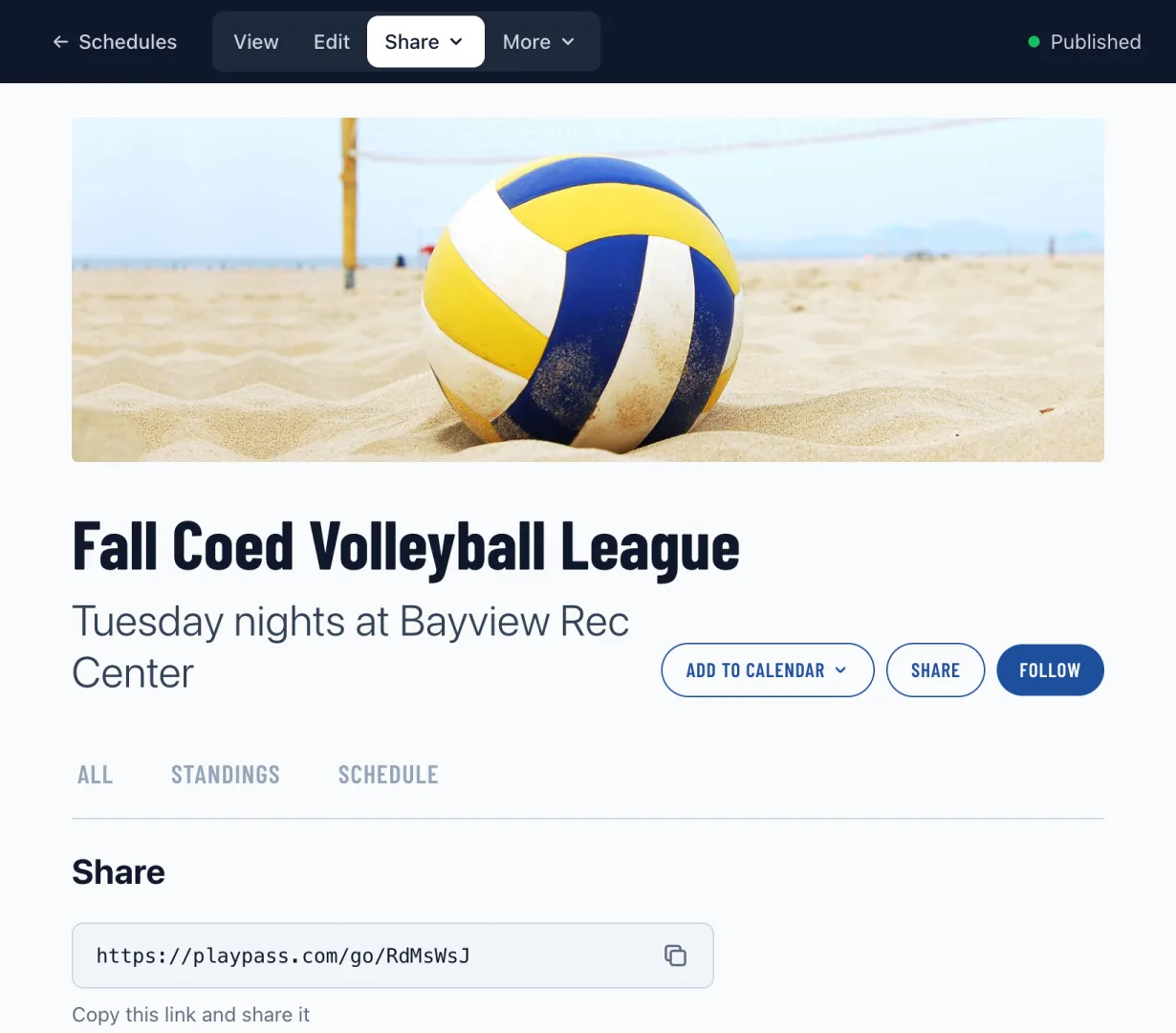
After you Publish your schedule, open the Share menu and choose Share to get a public link. Anyone with the link can view your schedule. Only you and any managers you add can edit the schedule setup. If you turn on Allow players to enter scores in Edit > Advanced, signed-in players can also submit scores from the public schedule after they follow that schedule.
Download or print your schedule
Open the Share menu to download, print, or sync your schedule. It's easiest to Publish and Share your schedule online, but if you want to Download, Print, or sync it to a calendar, you can do so from here.
- Download a CSV spreadsheet that can be opened in Excel, Google Docs, Numbers, etc.
- Print to download a PDF of the schedule
- Calendar sync: subscribe in Google Calendar, Apple Calendar, Outlook, etc
CSV transfer does not yet preserve TBD opponent and Exhibition game settings. If you export and import a schedule, check those games afterward before sharing or scoring it.
Import your schedule from CSV
If you already have a schedule in a spreadsheet, you can import it from CSV:
- From Dashboard > Schedules, click Import Schedule, or
- From an existing schedule, open Edit > More > Import from CSV
Importing a CSV will replace all games in that schedule, and existing games and teams will be removed. Use the same format as Download CSV.
Required CSV columns: Team A, Team B. Optional columns: Date, Time, Court, Group (for Round Robin), Round (for Playoff).
If you want to pull in registered teams or free agents instead of replacing games from a spreadsheet, use Edit > More > Import teams. That team-import flow is separate from CSV import.
Import teams from registration
Team-based Round Robin schedules can import teams and free agents from a linked registration activity.
- On the schedule, open Edit > More > Import teams.
- If nothing is linked yet, choose the registration activity on that page and click Continue.
- If the activity already uses Team and Free agent price options, Playpass may show a simple one-click summary. Click Import teams to use the default path, or Review details first if you want to inspect it first.
- If the activity mostly has individual registrations but it collected a team-name-like answer, use Group individual registrations into teams in Step 2 and choose the question that collected the team name.
- Review the grouped names before import. You can rename rows or combine similar team names by editing them to share the same final name.
- In Step 3, choose how to update the schedule:
- Replace schedule teams rebuilds the schedule around the imported team list. Use this only while the schedule is still flexible.
- Add players to existing teams keeps the current schedule shape and matches registrations onto the teams already on the schedule. Exact team-name matches are prefilled automatically.
- Click Import teams.
If an older activity only has individual registrations and did not collect a usable team-name field, Playpass cannot safely build schedule teams automatically from that data alone.
After import:
- Team registrations can create or match schedule teams.
- Free-agent registrations import into the schedule's free-agent pool so you can place them later.
- Regular individual registrations stay on the activity and do not change the schedule roster.
- Open Edit > Teams, then click a team, to manage captains, add roster members, or move players in from the free-agent pool.
The registration receipt that owns an imported roster can also return later and use Manage team roster to keep that team list up to date, including older individual registrations that were grouped into a team during import.
Add scores
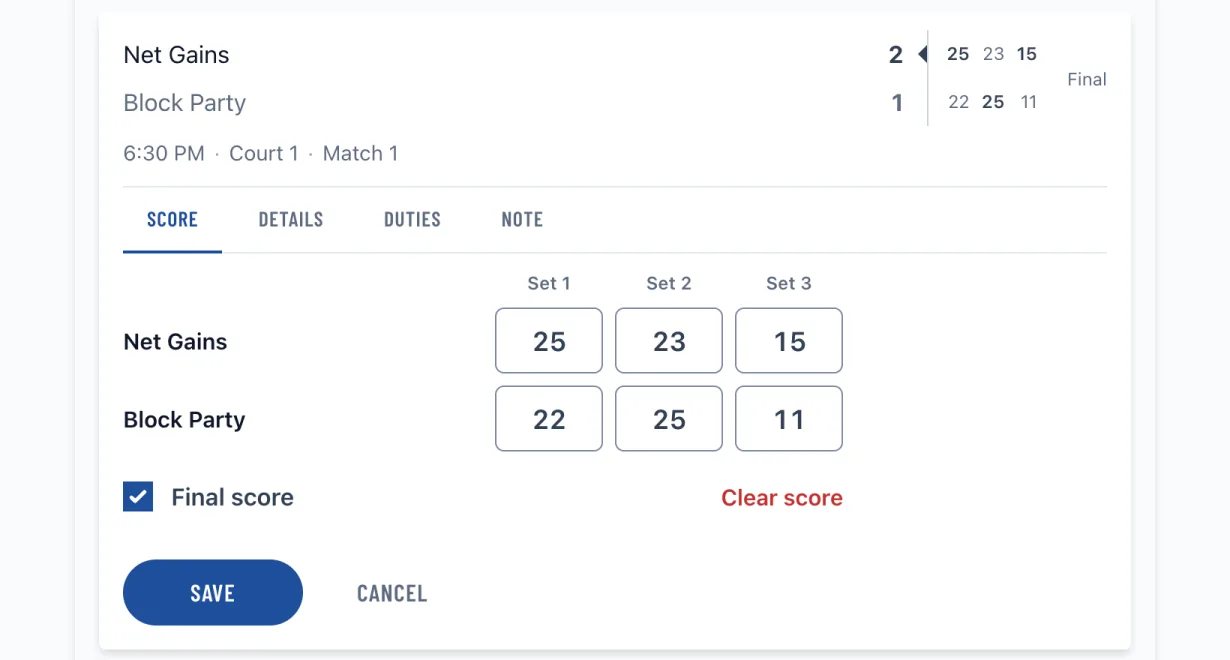
Tap Score on a game to record the score. The next game to score on the page has a filled Score button, and a game with a final score shows Edit score instead. The score form opens inside the game: a labelled box for each team, a column for each set when the schedule scores sets, and Final score, checked by default. Uncheck Final score to save a game still in progress. Enter, or Next on a phone keyboard, moves to the next box and saves from the last one. When you change a score, the standings update in real-time.
After you or a scorekeeper save a final score, the saved game shows Saved and the next visible game to score on the same date opens by itself. When no next game is visible, nothing else opens. Filters and pagination may hide other unscored games.
To reset a game, open its score and tap Clear score at the bottom of the Score tab. Clearing a score also clears that game's player stats.
From Home, Enter Scores and Update Scores open the schedule with Unplayed selected, so only the games still to score are listed, with the first of them at the top of the screen.
Regular score fields accept whole numbers or decimals, such as 0.5 or 2.5.
Note: After you start adding scores, some setup changes that rebuild the schedule are locked. You can still add more games to a Round Robin schedule without clearing scores. For other locked setup changes, you may need to remove scores first.
To move Swiss games after scores are entered, open Edit > Dates, times, and rounds > Move scheduled games. Choose a scheduled date and the new date. You can also shift all following generated dates by the same interval. This keeps scores and pairings; create the next Swiss round after the current round is complete.
Let players enter scores themselves
On supported schedules, you can let players record scores from the public schedule without giving them manager access.
- Open Edit > Advanced
- Check Allow players to enter scores
- Publish and share the schedule
- Players tap Score on the game they want to update
- If prompted, they sign up or sign in, then follow that exact schedule
- Then they can submit scores and the schedule will update immediately with that result
- Anyone else scoring the schedule can see who last changed the score and when
- Managers can see the scorer's full name, and from the linked member details they can also see the scorer's email
- Other players only see the scorer's first name and last initial
If you want staff-only score entry instead, use Scorekeeper or Scheduling Manager from Dashboard > Settings > Managers.
Give players awards
You can name a winner yourself, such as Best Player or Best Rookie. Awards do not depend on scores or player stats.
- Open the schedule as an organizer manager and choose More > Add award.
- Enter the Award name and select an existing Player. If two players have similar names, check the team name shown beside each player. If no player is available, open Edit > Teams and add a player to a team roster first.
- Under Trophy image, leave No image selected, choose one of the 15 built-in trophy styles, or use Or upload your own for a JPG, PNG, or GIF under 10 MB. Choosing a file selects your uploaded image automatically.
- Tap Add award. To change the name, player, or image later, use Edit beside the award. Choose No image and save to remove an uploaded image, or use Remove to delete the award.
Awards appear in the schedule's Awards section. Visitors can see them when the schedule is published and accessible to them. An attached playoff shares its round robin's awards, including winners from the playoff roster; a standalone playoff has its own awards. Awards are chosen manually and do not change standings or scores.
Add player stats and league leaders
Player stats are available on Round Robin and Swiss schedules and on standalone Playoffs. Attached playoffs use the stats of their round robin.
- Open Edit > Advanced
- Check Track player stats and league leaders
- Open Stats to track and check the stats you want to record. The list shows the stats used in your sport. Soccer, hockey, basketball, baseball, softball, volleyball, cricket, and several other sports start with a recommended set; other sports start empty. Sports without a stat list offer every stat. Select at least one stat that can appear on a leaderboard
- Optional: check Show league leaders on the public schedule if players should also see the leaders
- Save
- Tap Score on a completed game (Edit score if its score is already in), keep Final score checked, expand Player stats, tap Add player for each team, then enter the player name and stat line
Managers will see league leaders on the standings page as soon as stats are saved. Public viewers only see league leaders when Show league leaders on the public schedule is enabled.
Some leaderboards are calculated from the stats you check:
- Points: goals plus assists
- Boundaries: fours plus sixes
- Save percentage and Goals against average: from saves, shots against, goals against, and goalie games
- Batting average, ERA, and WHIP: from hits, at bats, earned runs, walks allowed, hits allowed, and innings pitched
- Strike rate, Economy rate, and Bowling average: from runs, balls faced, runs conceded, overs bowled, and wickets
A calculated leaderboard appears when every stat it uses is checked. Lower is better for goals against average, ERA, WHIP, economy rate, and bowling average. A player with nothing in the bottom of a ratio, such as no at bats, is left off that leaderboard.
Enter innings pitched as innings and outs, such as 6.2 for six and two-thirds innings, and overs bowled as overs and balls, such as 4.3.
You can add stats at any time. To remove a stat that already has recorded values, clear those values from the games first.
Advanced scoring and standings
Use Custom scoring when your sport needs more than simple win/loss/tie standings. You can now choose whether standings points come from the result of the match or from the recorded score itself.
- Open Dashboard > Schedules > Custom scoring
- Create a new scoring profile for that sport, or edit an existing one
- If you want all future schedules in that sport to use it, check Default for [sport]
- If you only want to use it on one schedule, save it and assign it from Edit > Advanced on that schedule
- If you change standings calculations on a schedule that already has scores, open More > Recalculate standings after saving the scoring changes. The option shows on schedules with fewer than 200 scored games
Inside the scoring profile:
- turn on Show standings if you want standings on the schedule
- turn on Show Home and Away on games if you want schedule game cards to identify each side
- use Show points column only if you want a visible points column in the table
- open More columns if you want extra standings fields such as Streak (
W5,L3,T1, orNR1), Last 10 (4-6,5-5,4-4-1T, or4-4-1T-1NR), Home record (8-1,4-2-1T, or4-2-1NR), Away record (6-3,3-4-1T, or3-4-1NR), sets won/lost/difference, no results, overtime losses, or forfeit losses - for cricket, open Sport-specific settings if you want Net run rate or Points per no result
- use Points system to decide how standings points are calculated
- use Special results to decide whether managers can mark overtime/shootout or forfeit outcomes when scoring games
Under Points system, choose:
- Result-based points: points come from win/loss/tie outcomes, with optional overtime, close-match, and forfeit overrides
- Score-based points: points come from the actual score entered for that game or match
Show Home and Away labels on games
Use this option when coaches, players, or families need to see each team's side directly on the schedule.
- Open Dashboard > Schedules > Custom Scoring
- Edit the scoring profile used by the schedule
- Turn on Show Home and Away on games, then save
The option is off by default. When it is on, the top, first-listed team is labeled Home and the bottom, second-listed team is labeled Away. The setting adds labels without changing the matchup or reordering the teams. To swap the sides for one game before it has a score, choose Edit details from its three-dots menu.
For an existing schedule, edit the scoring profile that schedule already uses. For future schedules, you can turn on the option in a profile and make that profile the Default for [sport] before creating the schedules.
Playoffs linked to a Round Robin schedule use that schedule's setting. A standalone playoff uses the organizer's default scoring profile for the sport. In each resolved playoff matchup, the first-listed team is Home and the second-listed team is Away.
Playpass does not show the labels on practice slots, Rotating Partners matches, byes, or unresolved playoff slots such as "Winner Game 1." You do not need to recalculate standings after changing this display option.
Current streak, last 10, and home/away record columns
Use these if you want the standings to show a team or player's current run, their most recent 10-result record, or separate home and away records.
- In Custom scoring, open More columns
- Turn on Streak, Last 10, Home record, and/or Away record
- Save the scoring profile and assign it to the schedule if needed
- If the schedule already has scores, open More > Recalculate standings (shown on schedules with fewer than 200 scored games)
-
Streak shows the current run from saved results, such as
W5,L3,T1, orNR1. -
Last 10 shows the most recent record from saved results, such as
4-6,5-5,4-4-1T, or4-4-1T-1NR. -
Home record shows the saved results from games where that team or player was on the home side, such as
8-1,4-2-1T, or4-2-1NR. -
Away record shows the saved results from games where that team or player was on the away side, such as
6-3,3-4-1T, or3-4-1NR. - This is separate from player stats and league leaders.
Result-based points
Use this when standings should be based on the final result of the match.
Examples:
- hockey overtime or shootout loss points
- standard win/loss/tie standings
- close-match split points such as a best-of-3 result ending 2-1
Overtime or shootout points
Use this for standings such as hockey where an overtime or shootout loss still earns points.
- In Custom scoring, under Special results, turn on Allow overtime / shootout results
- Under Points system, choose Result-based points
- Enter Points per overtime/shootout win and/or Points per overtime/shootout loss
- Optional: turn on Overtime losses if you want a separate OTL column in standings
- On a game, tap Score, enter the final score, choose Overtime or Shootout from Result, then save
If your league uses Score-based points, you can still turn on Allow overtime / shootout results. In that case Playpass keeps using the recorded score for standings points, while the game still shows the overtime or shootout result and can track an overtime-loss column.
Close-match split points
Use this for standings such as volleyball where a close full-distance win and loss should split points, for example 3-2 = 2/1. This is optional. Multi-set scoring keeps working the same way unless you fill in the close-match point fields.
- In Custom scoring, set Scoring sets to match your sport
- Under Points system, choose Result-based points
- Enter Points per close win and Points per close loss
- Score each set normally from the game itself
Playpass automatically treats a full-distance result decided by 1 set as a close match. There is no separate Result setting for this.
If your sport uses a deciding match tiebreak instead of a full final set, enter that deciding result in the last set score field.
Score-based points from recorded totals
Use this when standings should come from the score itself.
Examples:
- pool
10-8 = 10/8 - darts
1 point per leg won - tennis
6-2, 6-3 = 12/5 points per leg won + match win bonus
- Under Points system, choose Score-based points
- Choose Recorded totals
- Optional: enter Match win bonus if the winner should get extra points on top of their score total
- Score games normally
For single-score sports, each side's recorded score becomes its standings points. For multi-set sports, Playpass adds up the numeric scores from every set.
Score-based custom buckets
Use this when specific final scores should map to custom standings points.
Examples:
- padel
2-0 = 3/0,2-1 = 2/1 - volleyball
3-2 = 3/1 - race-to-12 pool ladders such as
12-10 = 4/3
- Under Points system, choose Score-based points
- Choose Custom buckets
- For multi-set sports, fill in the points for each final scoreline
- For single-score sports, add score rules in priority order
- Score games normally
For single-score sports, Playpass checks the score rules from top to bottom. If a result does not match any rule, it falls back to Recorded totals automatically.
Custom bucket score ranges can also use decimals.
Forfeits and other administrative results
Use this when a team wins or loses by forfeit and you want that tracked separately from a normal result, regardless of whether your standings are result-based or score-based.
- In Custom scoring, under Special results, turn on Allow forfeit results
- Optional: enter Points per forfeit win and/or Points per forfeit loss
- Optional: turn on Forfeit losses if you want a separate standings column
- On a game, tap Score
- Change Result to Forfeit
- Choose the Forfeit winner
- Save the score
You can leave the numeric score blank for a scoreless forfeit.
No-result games
Use this when a game is called off or abandoned and should count as neither a win nor a loss.
- In Custom scoring, under Special results, turn on Allow no-result games
- Optional: change Points per no result from its default of
0 - On a game, tap Score
- Change Result to No result
- Save the score
The game shows NR without a score and counts separately as a no result. Both teams receive the configured no-result points; leave the value at 0 to award neither team points. Show the No result standings column from More columns if you want that count visible. Cricket schedules already record no results from the cricket score form; set their no-result points under Sport-specific settings.
Deleting a schedule
You can delete schedules quickly from either:
- Dashboard > Schedules: view your schedules and delete them, or
- Edit your schedule > Advanced (from the schedule itself)
Add waivers or documents
Below the bottom of your schedule, you'll find links to Add waivers and Add uploaded files.
Add waivers to help you collect signed waiver forms or documents online.
Add uploaded files to share any file you upload with everyone viewing your schedule.
What's next?
- Create and manage schedules from Dashboard > Schedules
- Learn about inviting staff members to track scores and manage everything
- Learn about creating a registration activity to accept online registrations
- Learn about setting up online payments with Stripe to accept payments online
- Learn about creating a referral program to reward members for inviting friends
- Learn about creating a waiver template to collect signed documents
- Learn about creating website pages to add more content
Running a league or program?
See how Playpass can help you manage it all