Accept payments online with Stripe
Set up Stripe to accept payments and receive payouts.
On this page
Connect with Stripe
To get started, select Set up Stripe Connect in Dashboard > Settings > Payments, or from the top of any registration activity, membership, or booking page.
We'll pre-fill Stripe's onboarding form to speed things up. Once it's done you'll be redirected back to Dashboard > Settings > Payments and that's it. You're all set.
Playpass payments support:
- Registration for one-time and installment registration payments
- Memberships for recurring subscription payments
- Bookings for paid timeslot reservations
Registration installment payments
Playpass can also collect registration payments in installments.
When enabled on a registration price option, players can subscribe to a fixed installment plan such as 4 payments every 2 weeks. The first payment is collected at checkout and the remaining payments are charged automatically on the cadence you set.
You can configure:
- installment count (2 to 6 payments)
- billing cadence (every 1 to 60 days, weeks, or months)
Installment plans end automatically after the final payment.
Pass On Processing Fees
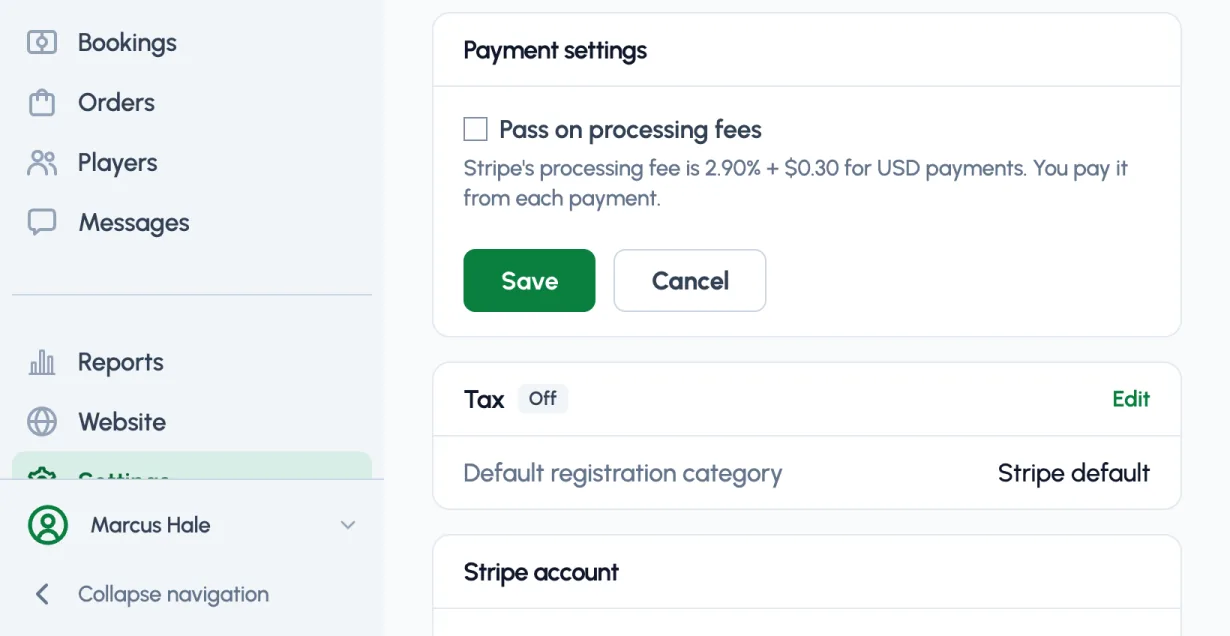
By default, you'll absorb Stripe's card processing fees. You can decide to pass on these fees to players when they register. In Dashboard > Settings > Payments, select Edit on Payment settings and check Pass on processing fees.
Stripe's processing fee for USD payments is 2.9% + $0.30 per successful card charge. They automatically deduct that fee from payments you receive, along with a Playpass fee (ex: 2% on the Pro plan).
Processing fee examples
Let's assume the Registration Price is $100 and you're on the Pro plan, with a 2% Playpass fee ($2.00 in this case). These examples help clarify how much the player will be charged and how much you'll receive.
Example 1 - Absorb Fee (ie Not Passed On): player will be charged $100.00. On Stripe, you'll see a breakdown of that amount minus fees: $3.20 Stripe processing fee and $2.00 Playpass fee. So the net amount you'll receive is $94.80.
Example 2 - Pass On Fee: player will be charged $103.30. On Stripe, you'll see a breakdown of that amount minus fees: $3.30 Stripe processing fee and $2.00 Playpass fee. So the net amount you'll receive is $98.00.
Payouts
Stripe offers fast, predictable payouts. Once you’re set up, payouts arrive in your bank account on a 2-day rolling basis. Or you can opt to receive payouts weekly, monthly, or manually. Adjust payout settings from Stripe > Payouts > Settings on your Stripe dashboard.
Reports
Dashboard > Reports shows your revenue over time and by program. See Reports.
In Dashboard > Settings > Payments, Open Stripe opens your Stripe dashboard, with payouts, fees, and its own reporting tools.
Refunds
To refund a registration payment, open its receipt from Dashboard > Registrations and choose Refund.
Stripe will refund their processing fee when you refund a payment. We will too as long as you're refunding a payment that's less than 21 days old.
Note: on the Stripe dashboard you can also refund payments. But you shouldn't because refunds from there will not refund our Playpass fee.
Currencies
Stripe payments are available for businesses in 39 countries including the US, Canada, Mexico, Brazil, Japan, Hong Kong, Singapore, Australia, New Zealand, and 16 European countries.
Stripe has different processing fees per country. View the fee for your country in Dashboard > Settings > Payments.
Tax reporting
If your account is based in the United States AND has more than $20,000 USD in total gross volume AND has more than 200 charges, then Stripe will file a 1099-K tax form. Note that Stripe files this form with United States IRS, only if ALL of those conditions are met in the previous calendar year.
FAQ
Can I connect an existing Stripe account?
Not directly. Playpass currently sets up payments through Stripe Connect during onboarding.
This is Stripe's recommended setup pattern for platforms like Playpass using Stripe Connect.
If you already use Stripe elsewhere, you will still need to complete the Stripe setup shown in Playpass to accept payments here.
If you need to change the Stripe account already connected to your Playpass organizer, contact support and we can help disconnect it so you can reconnect the correct account.
What's next?
- Connect with Stripe now if you haven't yet.
- Learn about creating a registration activity to accept online registrations and payments
- Learn about creating memberships to collect recurring payments
- Learn about creating booking pages to collect booking payments
- Learn about creating a referral program to reward members for inviting friends
- Learn about inviting staff members to help manage everything
- Learn about creating a schedule for your players and teams
- Learn about creating a waiver template to collect signed documents
- Learn about creating a website page to add more content
Have questions or need help? We're ready to assist at support@playpass.com.
More in Registrations & Payments
- Getting started with Registration Accept registrations, payments, discounts, questions, and waivers.
- Getting started with Memberships Set up recurring membership plans and automatic billing.
- Getting started with Bookings Create booking times, give registered players priority, and cancel one date when plans change.
- Spaces and the booking calendar Rent courts, fields, and rooms by name, see every booking on one calendar, and add bookings at the desk.
- Check-in and attendance Record arrivals for activities, memberships, and bookings, then review attendance history.
- Registration, Memberships, and Bookings FAQ Choose the right setup for signups, recurring dues, and reservable times.
- Getting started with Sponsorships Sell sponsor packages, collect payment, and display approved sponsor logos.
- Getting started with Products and Storefronts Sell products at checkout or in a store, with options, stock, personalization, pickup, and shipping.
- Reports See revenue, signups, returning players, schedules, and attendance for your organization or one program.
Can't find it? Ask us.